
Sorting for Print and Export
Sorting for Print and Export
The Output Sort feature allows you to specify the order in which cards are printed or exported within their templates, without making any changes to your content.
But why bother?
Card decks are almost always meant to be shuffled, so the order in which they are printed may not be meaningful. This means that, most of the time, there is no need to use the Output Sort feature, especially for printing.But sometimes you may design a deck that is never to be sorted, and instead always starts the game in a specific order. If you are going to export your deck to an online gaming service such as Tabletop Simulator, you may want to export in sorted order. That will minimize the amount of work you will have to do to set up the initial state of your game each time you make a change to your deck.
Using the Sort Panel
To change the output sort order of your deck, open the Output Sort panel by clicking Output Sort in the document window's toolbar, or by selecting the menu item File > Sort.
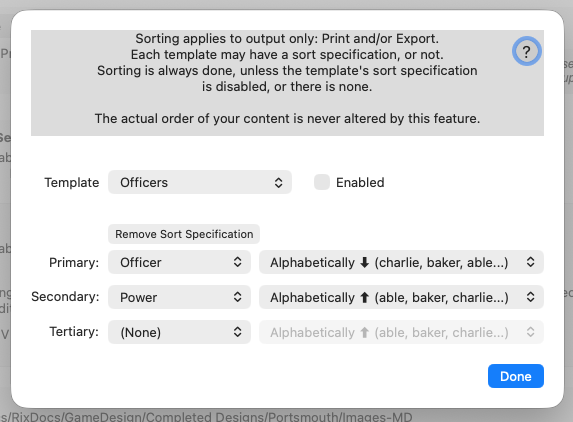
The Output Sort panel
Sorting is done separately for each template. By default, no template is sorted. To sort a template, select the template from the popup Templates button in the panel. Then click the Create Sort Specification button. The popup menus for the first levels of sorting will be enabled. Beginning with the Primary level, select a content column from the popup menu, and a sort specification from the popup to its right. If you want more detailed sorting, do the same with the Secondary and Tertiary popups.
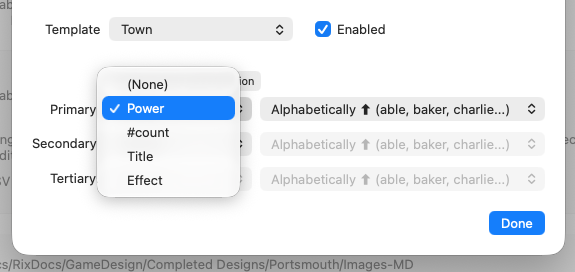
The template "Town" and its content column "Power" have been selected, and will be sorted in ascending alphabetical order.
By default, templates that have sort specifications will always be sorted whenever you print or export. But you may use the Enabled checkbox to turn sorting for the selected template on or off.
When you have finished using the Sort Panel, click Done. Your choices will be saved with your document.